Create / edit a framework working time model
In the dialogue for editing a framework working time model, all the rules are defined according to which working hours are checked, reduced, rounded and automatically adjusted. Framework working time models are used in particular to automatically implement legal requirements, company agreements and fixed shift times.
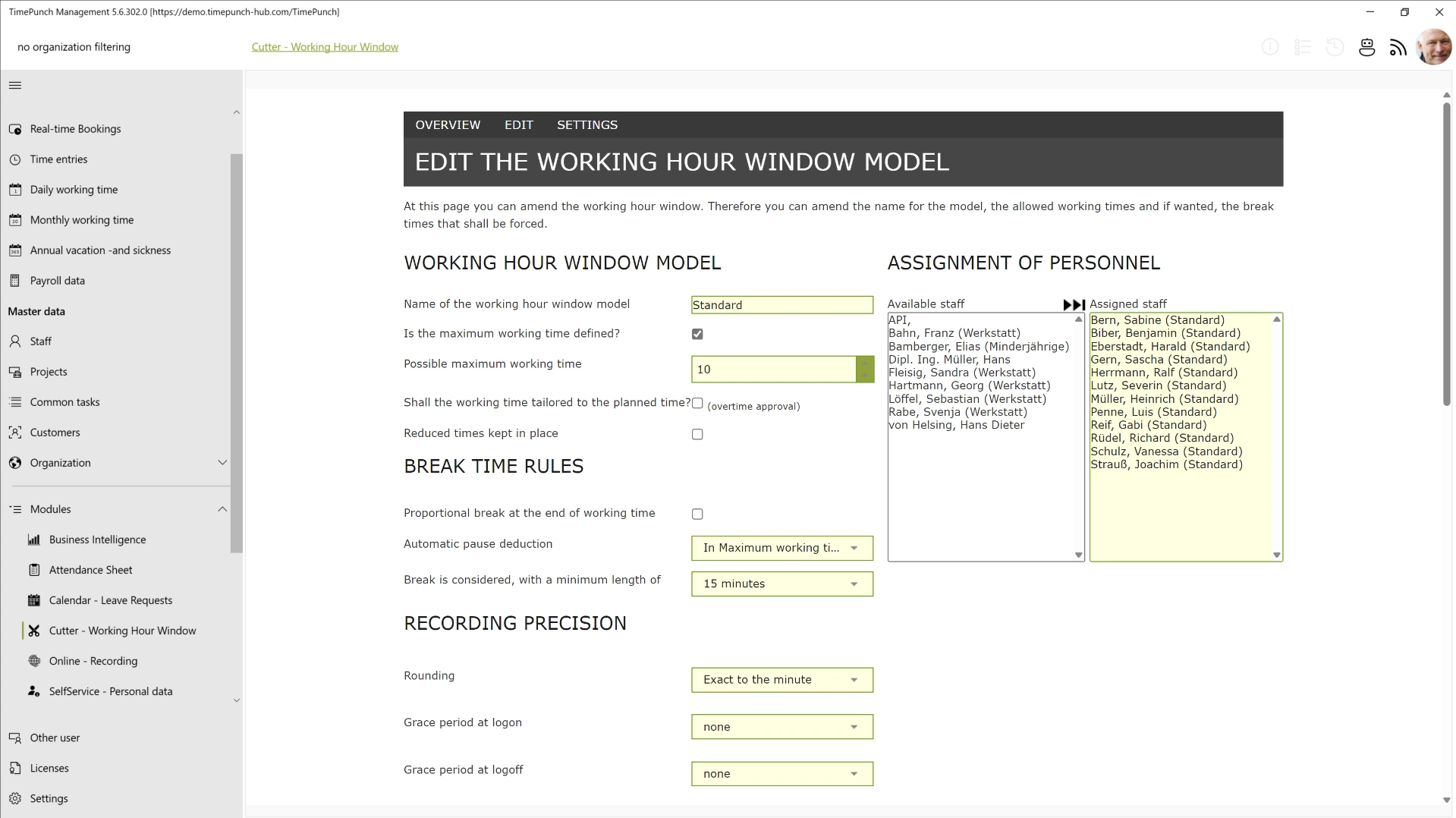
Name of the framework working time model
Each framework working time model requires a unique name. This name not only serves to provide a clearer overview in administration, but is also used in logging and audit entries.
It is therefore advisable to assign meaningful names, for example:
- Early shift, Production
- Administration, Full-time
- Service, Field staff
- Night shift, Logistics
This ensures that it is always clear which model has been applied to an employee.
Is the maximum working time defined?
This setting allows a maximum daily working time to be defined.
As soon as employees work longer than permitted, the excess time is automatically reduced or adjusted. This prevents an unintended number of working hours from being recorded.
This function is particularly suitable for:
- statutory maximum working hours
- fixed collective agreement working time limits
- mini-job regulations
- part-time staff
Should working hours be reduced to the target hours?
If this setting is enabled, working hours are automatically limited to the target hours stored in the working time model.
This prevents employees from accumulating additional overtime. Any working hours exceeding the target hours are automatically removed or reduced.
Example
An employee has a daily target working time of 8 hours.
- Recorded: 08:00 to 17:00
- Net working time: 8:30 hours
If the reduction is enabled, 30 minutes are automatically removed, so that only the target working time of 8 hours remains.
If this setting is enabled, absences can no longer be offset by additional overtime.
Times are not deleted, but merely marked as deleted
If working time is reduced by the framework working time model, the original entries can either be removed entirely or simply marked as deleted.
If this option is enabled:
- the original entries are retained
- the entries are merely marked as invalid
- the original working time can be reconstructed later
This is particularly advantageous for:
- audit compliance
- traceability
- works council requirements
- audits
Pro-rata break at the end of working time
If this option is enabled, a missing mandatory break is only added pro-rata.
Example without pro-rata calculation
An employee must take a 30-minute break after 6 hours of working time.
The following are recorded:
- Working time: 6 hours 10 minutes
- No break
In this case, the full 30 minutes’ break is deducted.
Result:
- Remaining working time: 5 hours 40 minutes
Example with pro-rata calculation
When pro-rata calculation is enabled, only the missing minutes exceeding the maximum permitted working time are deducted.
The following are recorded:
- Working time: 6 hours 10 minutes
- No break
Result:
- Deduction: 10 minutes
- Remaining working time: 6 hours
This setting is often used to avoid disproportionately high deductions for minor overrun.
Automatic break deduction
Statutory mandatory breaks can be calculated in two different ways.
1. Throughout the day
With this setting, TimePunch totals all breaks taken during a working day and then checks whether the statutory minimum break has been met.
If break time is missing, it is automatically added.
Example
Mandatory break:
- 30 minutes after 6 hours of working time
Recorded breaks:
- 10 minutes
- 5 minutes
Total break:
- 15 minutes
As the statutory break of 30 minutes has not been reached, TimePunch automatically adds a further 15 minutes of break time.
2. Within maximum working hours
In this mode, TimePunch also checks whether the break was taken on time.
This means:
The mandatory break must be taken within the maximum permitted working hours.
Example
Requirement:
- A break must be taken after 6 hours at the latest
Recorded:
- Start of work: 08:00
- Break: 14:30
The break was taken too late, as work had already continued for more than 6 hours without a rest break.
In this case, TimePunch automatically adds the missing break within the first 6 hours.
This setting helps companies to consistently comply with the legal requirements of the Working Hours Act.
Rest break is counted from
This defines the minimum duration required for a break to be classified as a statutory rest break.
Under German working time legislation, breaks of less than 15 minutes do not normally count as a rest break.
Short breaks such as:
- Smoking breaks
- A quick coffee break
- Private conversations
therefore do not contribute to the statutory minimum break.
Example
Setting:
- Rest break counts from 15 minutes
Booked breaks:
- 5 minutes
- 5 minutes
- 5 minutes
Although there are a total of 15 minutes of breaks, none of these breaks count as a statutory rest break.
TimePunch therefore automatically adds the full mandatory break.
Rounding accuracy
Rounding accuracy determines whether and how working hours are rounded.
Both:
- Start of work
- End of work
can be adjusted automatically.
Without rounding, all entries are recorded to the nearest minute.
Grace periods
Grace periods can also be defined.
These determine:
- up to what point rounding is employee-friendly
- from what point rounding is employer-friendly
Example
Rounding:
- to 10 minutes
Grace period on clocking in:
- 3 minutes
Case 1 – Employee arrives 2 minutes late
Recorded:
- 08:02
Result:
- Rounded to 08:00
Case 2 – Employee arrives 5 minutes late
Recorded:
- 08:05
Result:
- Rounded to 08:10
This function is frequently used to handle minor deviations fairly and automatically.
Employee Assignment
Here you specify which employees are assigned to this flexible working time model.
Once an employee has been assigned to the model, all rules defined within it automatically apply to their working hours.
Assignment is typically based on:
- Department
- Location
- Role
- Shift model
- Contract type
Unpaid overtime
This setting allows you to define whether a certain number of daily overtime minutes remain unpaid.
Depending on the selection, up to 50 minutes of unpaid overtime per day can be defined.
Example
The following are defined:
- 15 minutes of unpaid overtime
An employee works:
- 8 hours 12 minutes
Result:
- The additional 12 minutes are not paid
- The working time account remains unchanged
This function is frequently used in connection with:
- Changing times
- Handover times
- Preparation times
Framework working hours / Shifts
Within a framework working hours model, different shift times or framework working hours can be defined.
Depending on the actual clocking in/out of employees, TimePunch automatically selects the appropriate framework time and adjusts the working time accordingly.
Transition periods
The transition period at the start and end of a shift defines the time span during which the respective core working hours still apply.
Without a transition period, the defined core hours apply throughout the day.
Example
Core working hours:
- 08:00 to 17:00
- Transition period at the end: +30 minutes
Case 1
Booked:
- 07:50 to 16:30
Result:
- Working hours are adjusted to 08:00 to 16:30
Case 2
Booked:
- 07:45 to 17:10
Result:
- Working hours are limited to 08:00 to 17:00
Case 3
Booked:
- 07:30 to 17:45
Result:
- Working hours are adjusted to 08:00 to 17:45
As the transition period has been exceeded, no further reduction is made at the end of the day.
Mandatory breaks after working hours
Mandatory breaks are defined here, which are automatically taken into account after a certain number of working hours.
Multiple mandatory breaks can be set up. The following settings are available for each mandatory break:
- Working hours : Defines the working hours after which the mandatory break is taken into account, for example after 6 hours of work.
- Mandatory break duration : Specifies the minimum duration of the break once the defined working hours have been reached.
- Break period: An optional setting that defines the timeframe within which the employee must take the break.
- Weekdays: Determines on which weekdays the mandatory break applies, provided that the respective day is a regular working day for the employee.
If this option is enabled, the stored default break is automatically recorded if employees do not record their break themselves.
This ensures that statutory or company break regulations are complied with. This also serves to protect the interests of employees.
Breaks with start and end times
If fixed breaks are mandatory within the company, these can be defined with a fixed start and end time.
This automatically takes into account, for example:
- Breakfast breaks
- Lunch breaks
- Shift breaks
- Production stoppages
Example
Lunch break:
- 12:00 to 12:30
If an employee books a continuous shift from:
- 08:00 to 16:00
the defined break is automatically taken into account.
Excluded projects and activities
Certain projects or activities can be excluded from the reduction and standard working time rules.
Working hours on these projects remain unchanged and are not automatically reduced.
This is suitable, for example, for:
- Mandated overtime
- On-call duty
- Emergency call-outs
- Special projects
- Maintenance work outside normal working hours
This allows exceptions to be implemented flexibly without having to adjust the entire framework working time model.