Approval of Project Hours
Overview
TimePunch allows project managers to approve project hours. You can configure the system so that approval is required for all projects by default. Alternatively, this setting can be enabled or disabled on a per-project basis.
Approval can take place during the current month or, at the latest, after the previous month has been closed, via the corresponding approval panel.
Settings
In the TimePunch Management settings, you can specify whether project time approval is mandatory for all projects that are order-based or have an hourly quota.

If the option “Request approval of project times for order-based projects and projects with an hourly quota” is enabled, this setting applies to all projects by default. If individual projects are to be excluded from this or given different settings, this can be specified directly in the respective project settings.
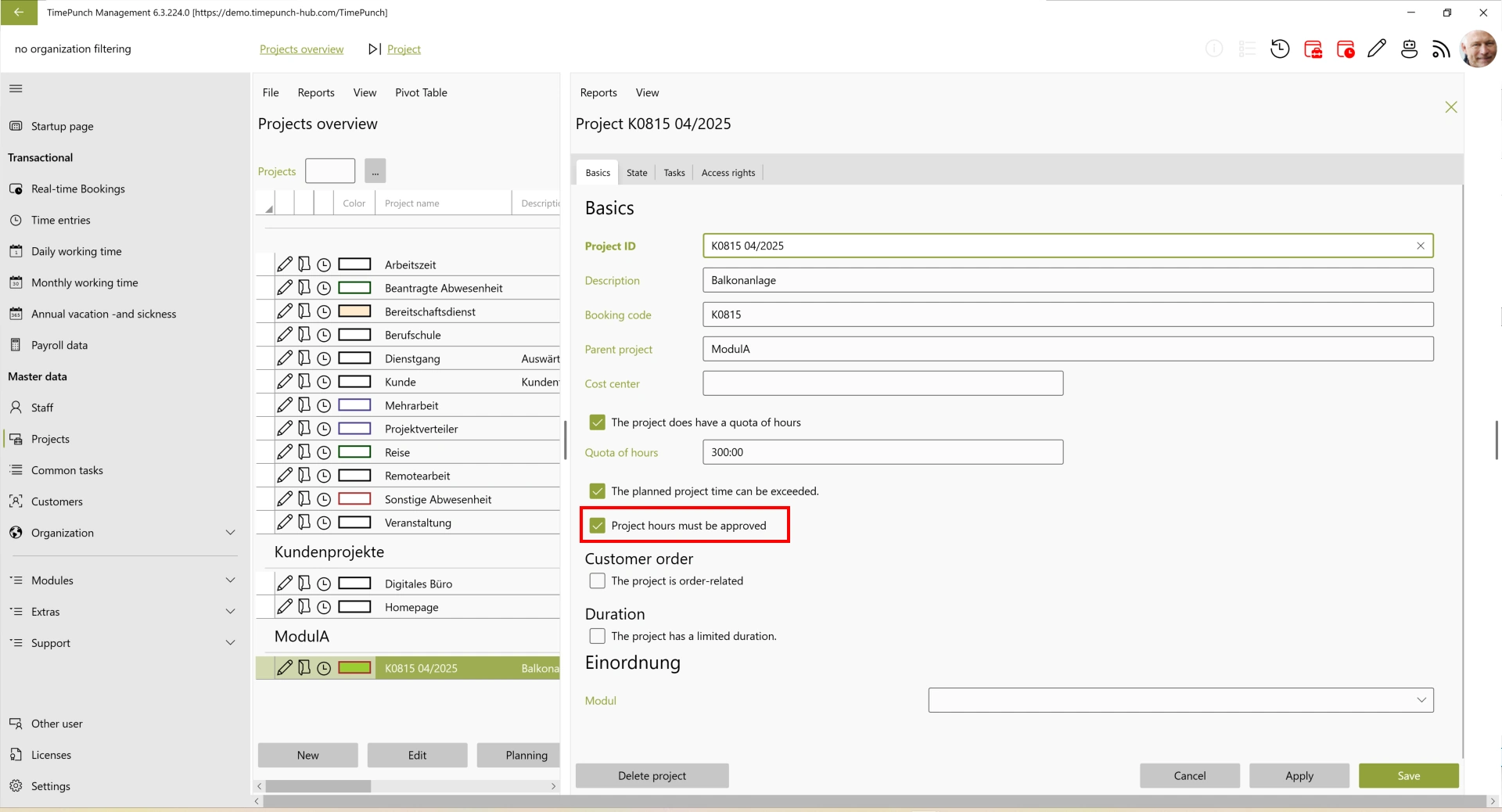
The three-level dropdown menu has the following meanings:
- Checkbox filled in: No individual setting is applied. The global configuration applies.
- Checkmark: Project time approval is mandatory for the project.
- Unchecked box: Project time approval is not required for this project.
Approvers
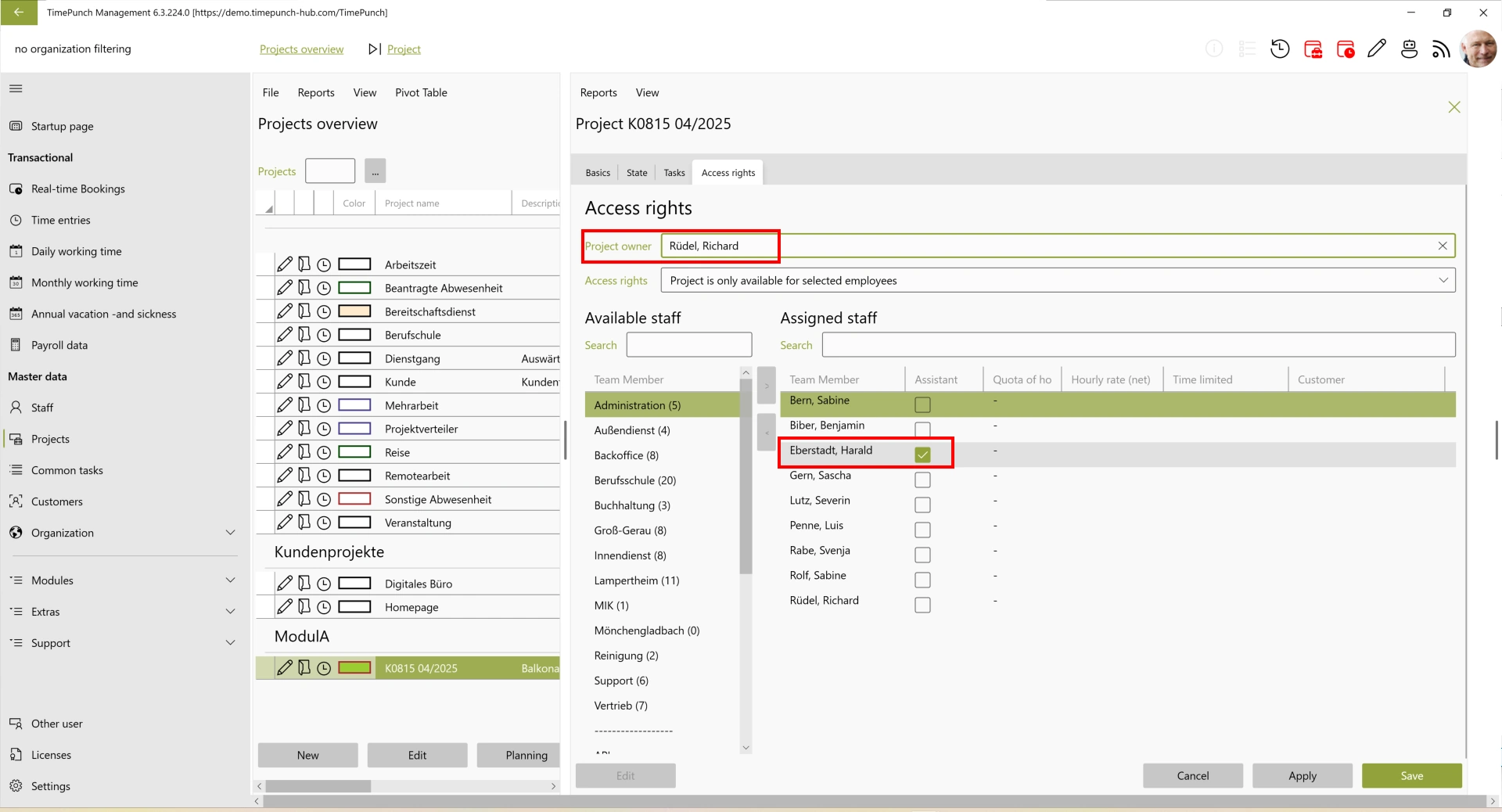
Project time approvals are generally performed by the project manager or a project management assistant. The approvers are automatically determined based on the responsibilities defined in the project and cannot be changed via the self-service module.
Manual Approval of Project Times
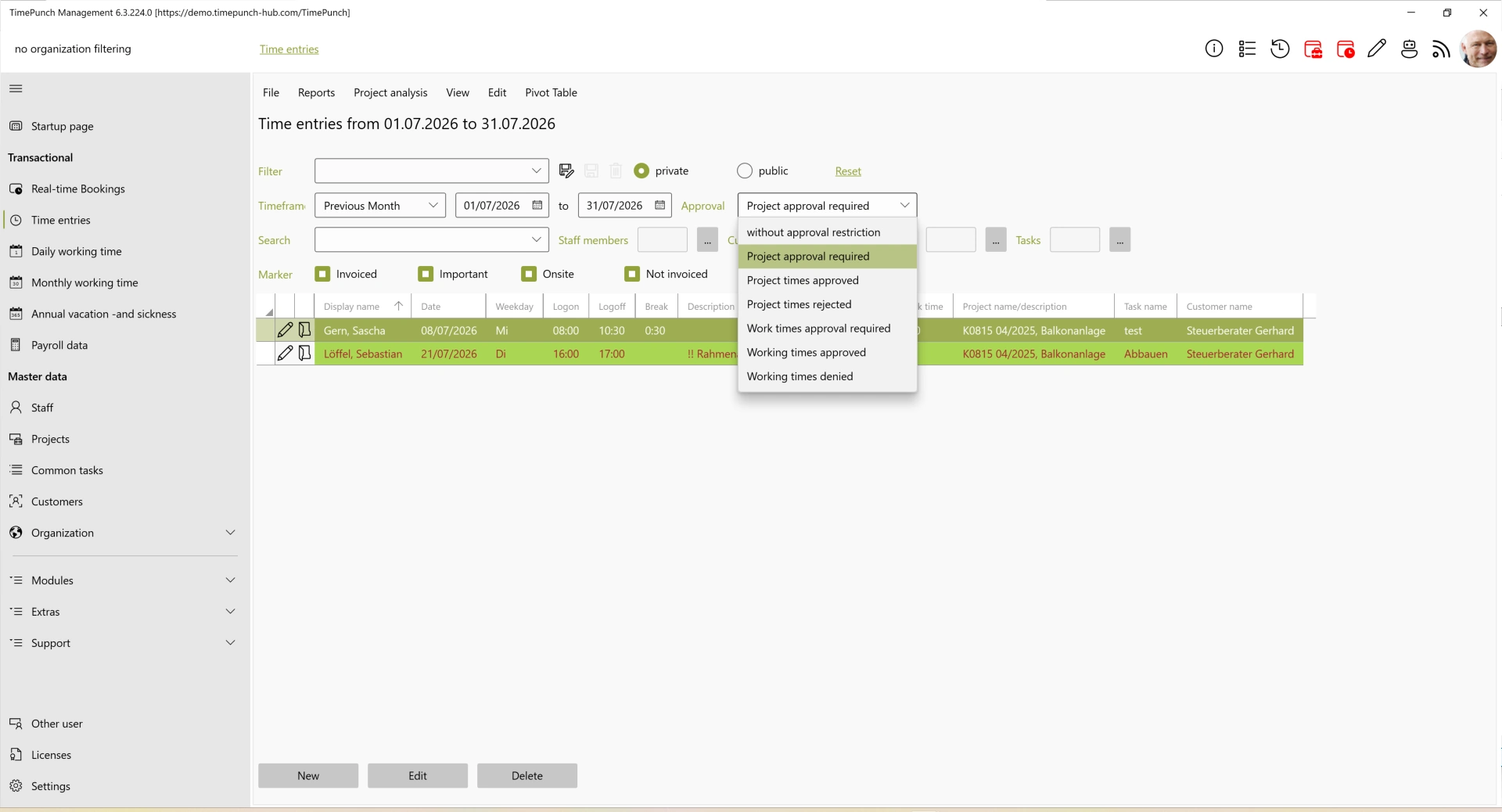
Project times can be manually approved both within a given month and retroactively. To do this, use the corresponding search filter in the “Time entries” view to display all project times that need to be approved.
You can then approve or reject the project times via the context menu.
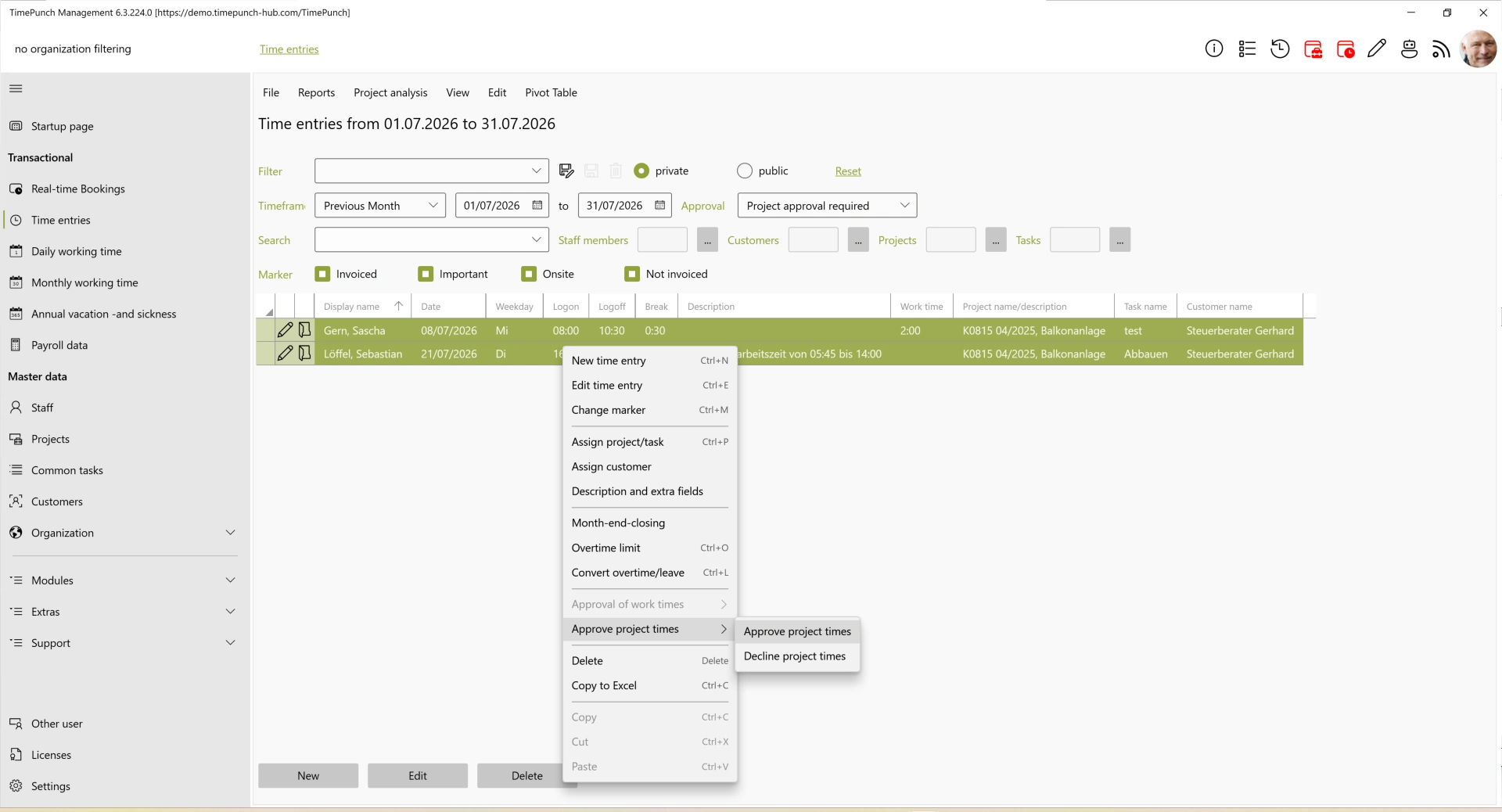
If a project time entry is rejected, a reason for rejection must be provided. This reason is communicated via email to the person who entered the time and is also saved in the time entry.
Approval via the Project Time Approval Panel
The Project Time Approval Panel displays all projects for which the previous month’s project times have not yet been approved. If there are project times available for approval, the approval icon turns red. The project approval icon shows a panel with a padlock.
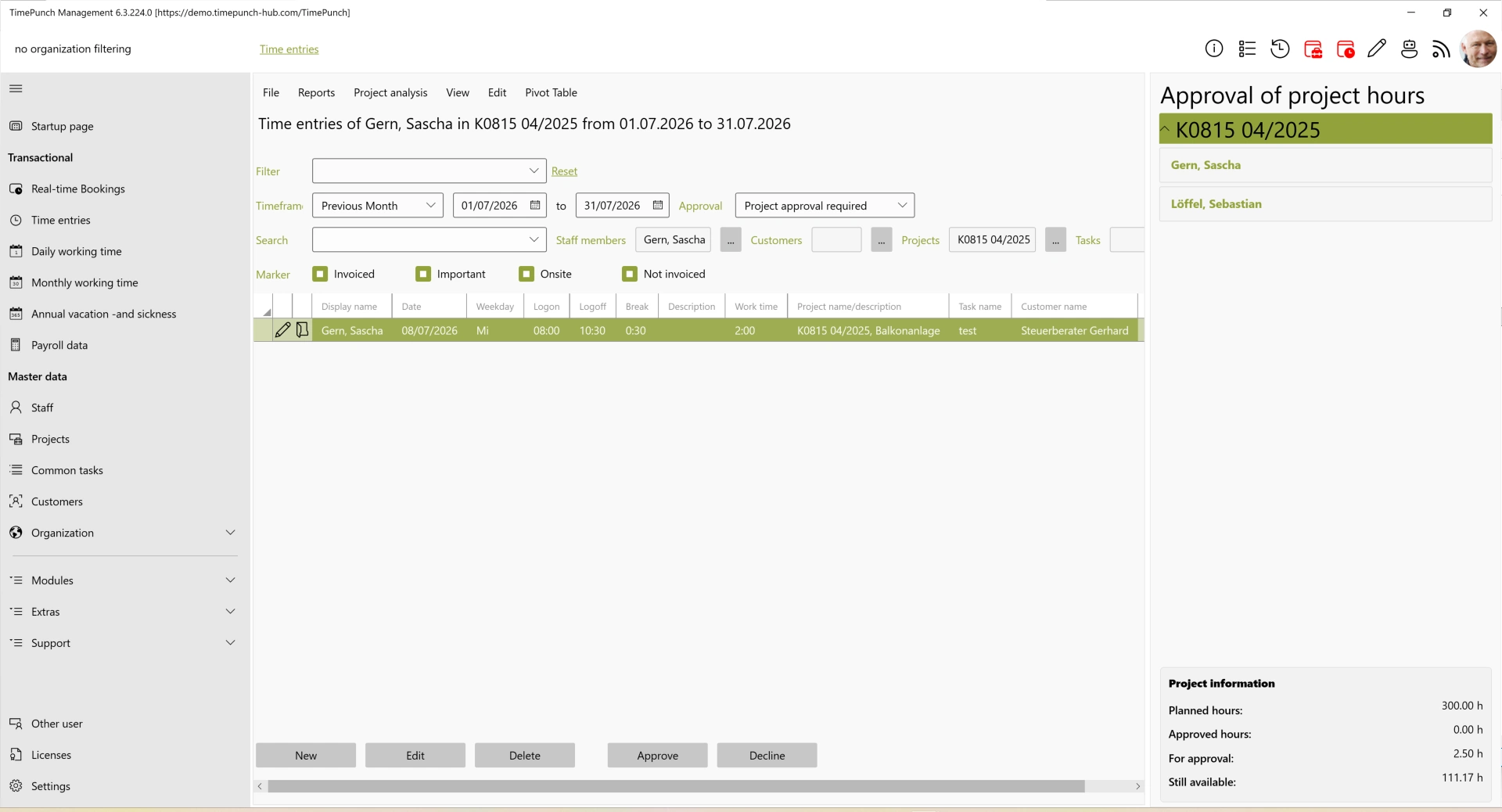
After selecting a project, all unapproved project times from the previous month are displayed.
Using the Approve or Reject buttons, all displayed project times can be processed in a single step. Alternatively, individual entries can be specifically approved or rejected via the context menu.
Consequences After Approval
Project times that have already been approved can no longer be changed directly by employees—even if they have the “Employee in position of trust” authorization.
If a project time entry that has already been approved needs to be changed, a new change request must be submitted. Administrators and employees with personnel responsibility can continue to edit these work times directly.
If project times that have already been approved are subsequently changed, approval is required again.