Retrospective project assigment
Retrospective project assigment means that employees do not have to change projects immediately when they start a new task. Instead, working hours are always initially allocated to a predefined project. By default, this is the project distribution.
If time is booked to this project, employees can freely allocate their working time to different projects after completing the work – or even days later. This assigment is done via retrospective project assigment.
Differences from start/stop recording in Watcher
Retrospective project assigment differs from classic start/stop recording in TimePunch Watcher in the following points.
Project assigment dialogue after completion of recording
If time recording is ended while a project for retrospective assigment (e.g. the project distributor) was previously active, the project assigment dialogue opens automatically in TimePunch Watcher.
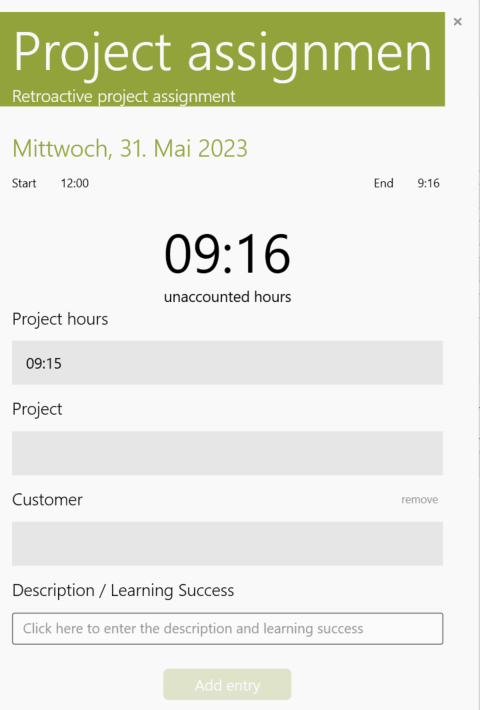
The dialogue displays the time entry that has just been completed and prompts the employee to allocate this entry. The following information can be entered:
- Project hours
- Project
- Activity
- Customer
- Optional description
Click ‘Enter’ to save the project assigment. This reduces the remaining time that still needs to be allocated to a project.
Editing the project assigment
The list of project assigments can be edited by the employee for as long as they wish, until the project assigment is completed. An existing entry can be reopened and edited by clicking on the corresponding project assigment.
Completing the project assigment
When the project assigment is completed, the previously finished time entry is finally distributed to the selected projects.
Important: If the project assigment is completed without all of the time being distributed, the remaining time remains open and must be reallocated later.
Retroactive assigment
It is not always possible to allocate projects immediately after completing a time entry.
A typical case is when the PC continues to run and the employee does not confirm the dialogue. In this case, TimePunch Watcher automatically completes the time entry without allocating a project.
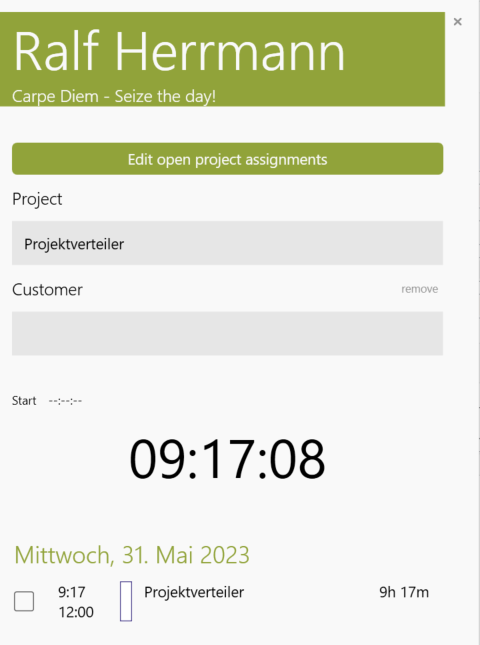
For such situations, the Watcher offers the option of assigning existing entries retrospectively. If there are still open project assignments, this is indicated in the Watcher by a button that is clearly visible to the employee: ‘Edit open project assignments’
After clicking on this button, a list of all open project assigments is displayed.
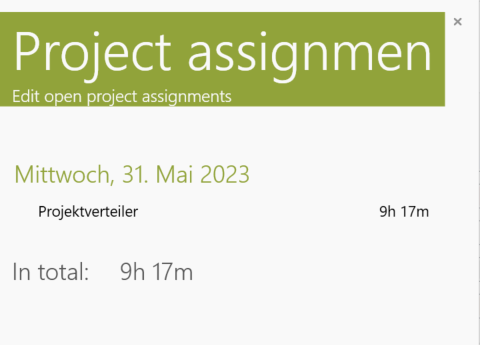
Clicking on an open project assigment opens the dialogue box for allocating working time. The same ‘Complete project assigment’ dialogue box appears as when you finish an active time entry in the normal way.
Special case: Account assignment without ending time recording
Employees are also allowed to make intra-day project account assignments. This means that the working time recorded so far can be distributed to different projects without ending the current time recording.
To do this, use the ‘Accounting’ button in Watcher.

Note: The ‘Accounting’ button is only visible if time recording is currently running on the project for retrospective project accounting (by default, the project distributor).
Settings in TimePunch Management
The basic options for retrospective project assigment are defined in TimePunch Management. These can be found in the Settings tab under Retrospective project assignment.